To assist customers with the ATO's payday super requirement we have introduced this feature to be available across all paying users. Users on our Starter package have access to our super reports, and will need to arrange a separate super clearing house arrangement. This feature allows customers a method of submitting and managing super submissions directly through the ClockOn software via our integration to the BEAM super clearing house.
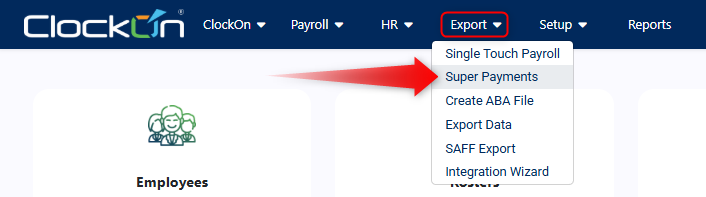
This article details the steps for the following items.
- BEAM Registration
- Adjusting / Updating Registration Details
- Creating and Processing a Draft Submission
- Cancelling a Super Submission
- Resubmitting Employee Amounts After Errors
- Processing Status
- Member Registration Request (MMR)
- Frequently Asked Questions
IMPORTANT INFORATION
|
BEAM Registration
On your first access you will need to proceed through a Registration process, click the Register button to proceed.
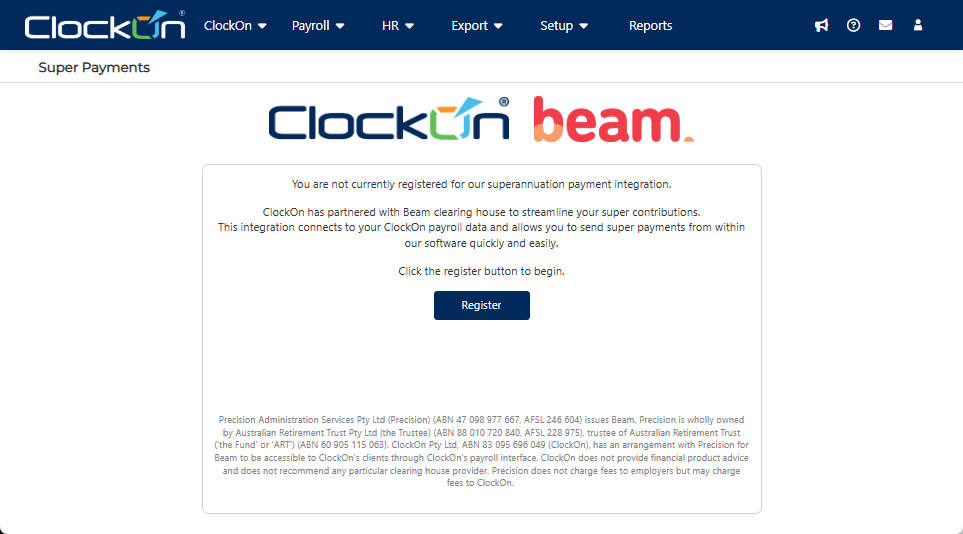
This will redirect you to the beam signup site, the first page outlines important information. The walkthrough below details the steps for this process.
Once the registration process is complete you will be taken to a page where you can review the direct debit account details (if entered) and set a Refund Bank Account (required).
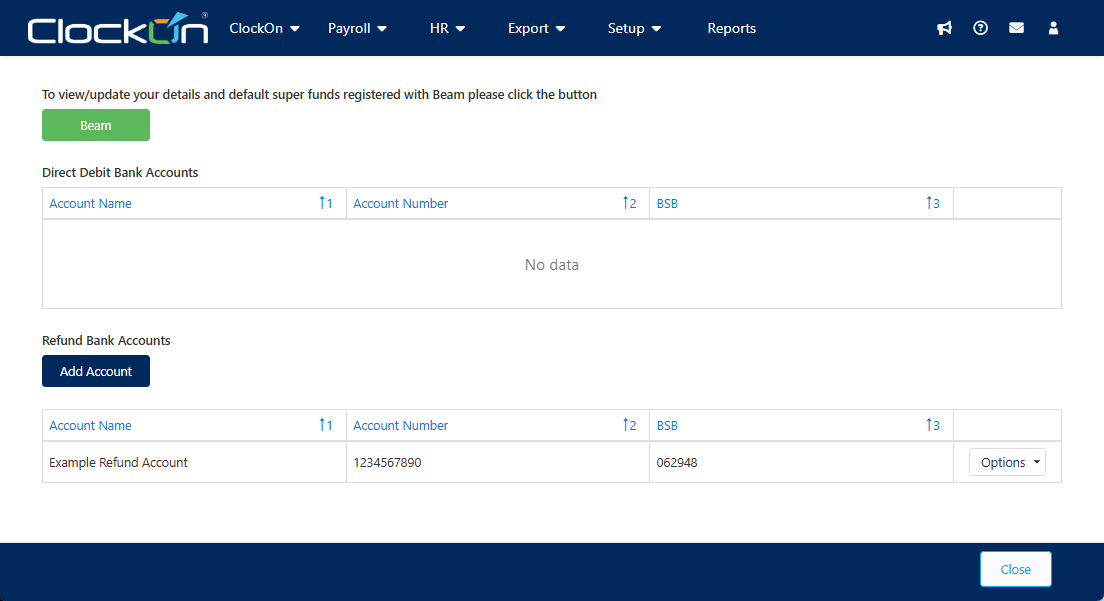
The purpose of the refund account is to assist where payment errors may occur. This allows for an avenue for Beam to return funds to the company in the event that the payment to the employee's super fund fails. a few example reasons for funds being returned may include; the fund has closed, and the member number doesn't match.Adjusting / Updating Registration Details
In the event that you need to adjust the setup details for BEAM, you can do this by re-running the registration process.
Examples of why this may be needed include;
- There have been updates to the business's contact details.
- You need to adjust the bank account details or you want to shift the payment type.
- You want to change the companies default super fund
To make this change use the Actions > Settings option

You can then use the Beam button to restart the registration process.
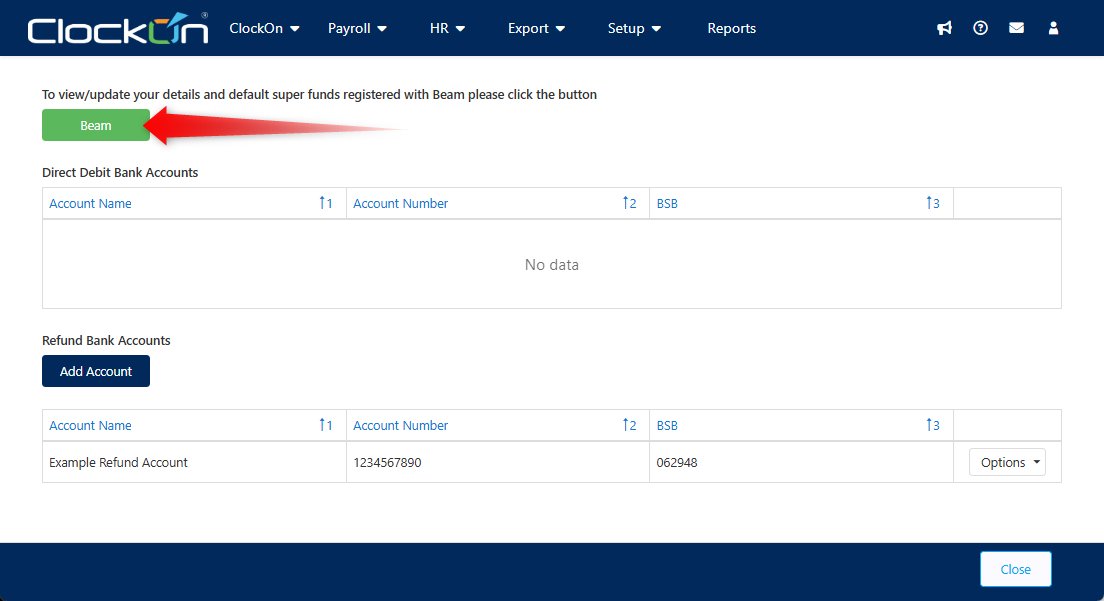
This screen also gives you access to adjust the indicated Refund account.
Creating and Processing a Draft Submission
With the registration process complete we move on to the summary screen. From here you can start the submission process. The following walkthrough demonstrates the process for creating customising and processing super submissions though the Beam integration.
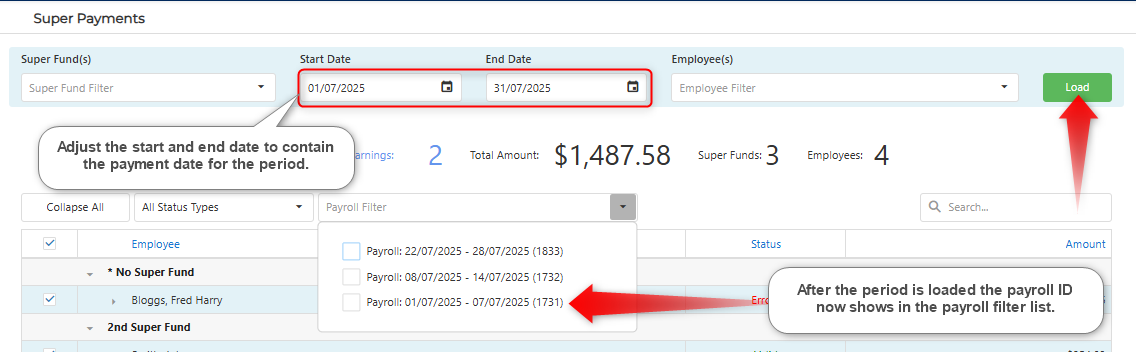
A reminder that just like the payroll reporting, the payroll payment date is used to determine whether the periods will be included in the selection. For example if a period has the dates 01/01/2026 - 07/01/2026, with a payment date of 08/01/2026, the date range will need to cover 08/01/2026 to include the pay run.Cancelling a Super Submission
If you have made an error has been made when setting up a fund transfer, you have the option to cancel the submission process. This is done within the submission using the Actions menu and selecting Cancel.

Cancelled submission instances still appear on the submission list and can be used to create new instances with the Process Unsubmitted process.
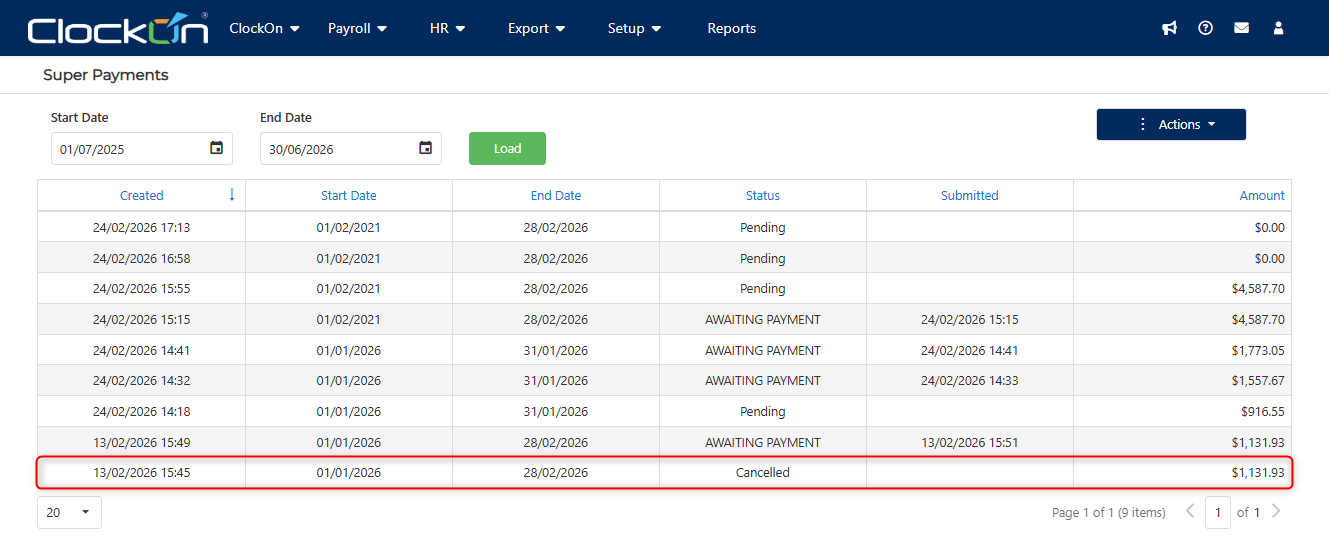
Cancelling the transfer is no longer possible if the payment has been made to Beam the fund transfer process has begun. Resubmitting Employee Amounts After Errors
In the event that an error was detected after the attempt was made, ClockOn will receive an update from BEAM to advise that the payment has failed. This will result in the funds being returned to your refund account and the affected employees being deselected from the submission record.
If this occurs you will be notified via email using the address specified in the Contact Details section within ClockOn.
For these instances you will need to make the needed corrections in the system before re-attempting the process.
To allow users a method to quickly prepare new submissions for instances where the payments have failed we have the Process Unsubmitted feature. this creates a new submission instance, including only the employees that where deselected in the current instance because of error items.
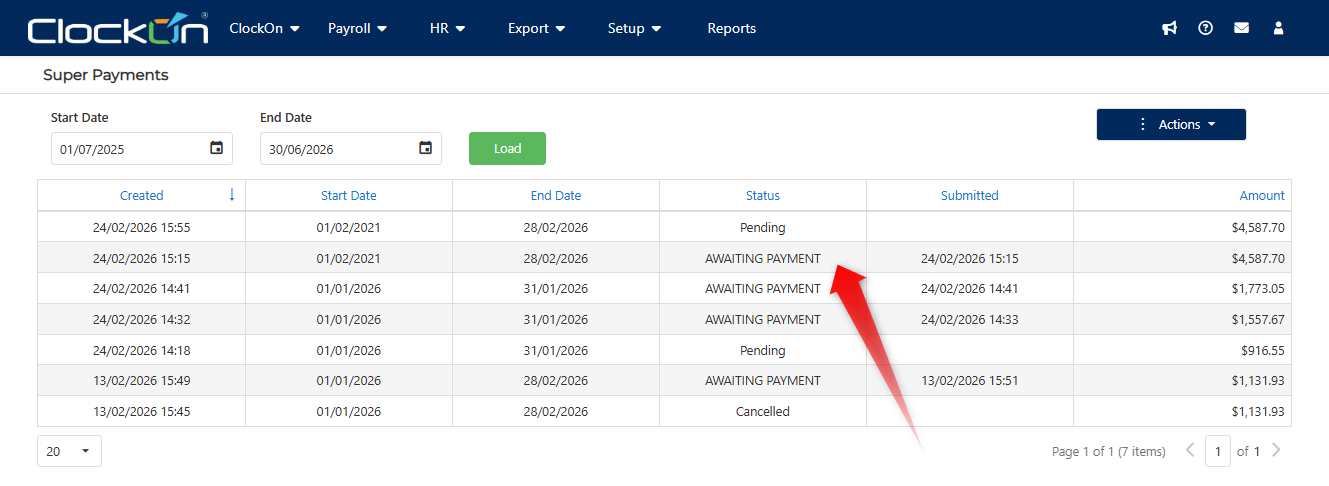
To do this open an existing super payment instance by selecting it from the Super Payments screen.
In the example below, the employees were excluded as they did not have a linked super fund. the exclusion is denoted by the checkbox being empty.
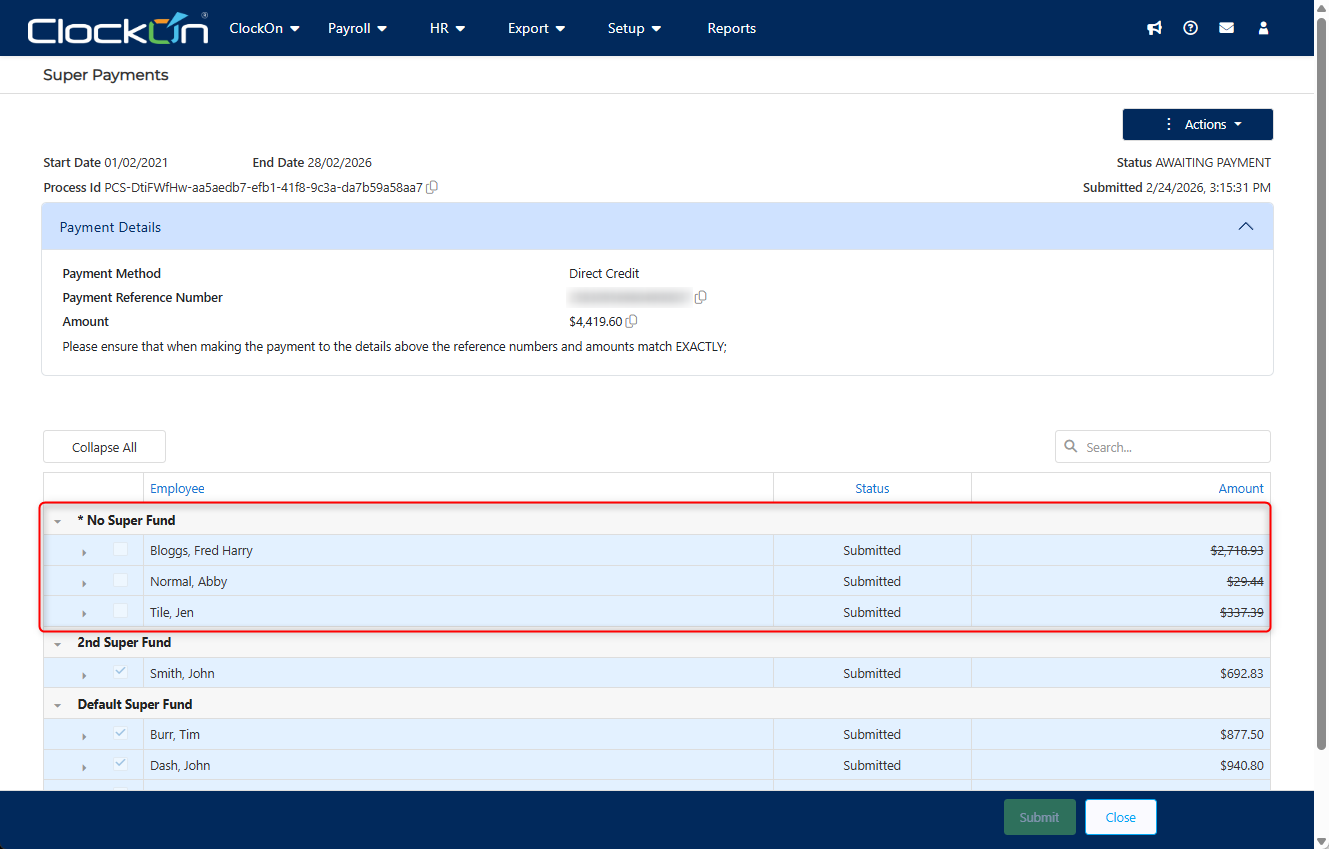
Under the Actions menu use the Process Unsubmitted option.
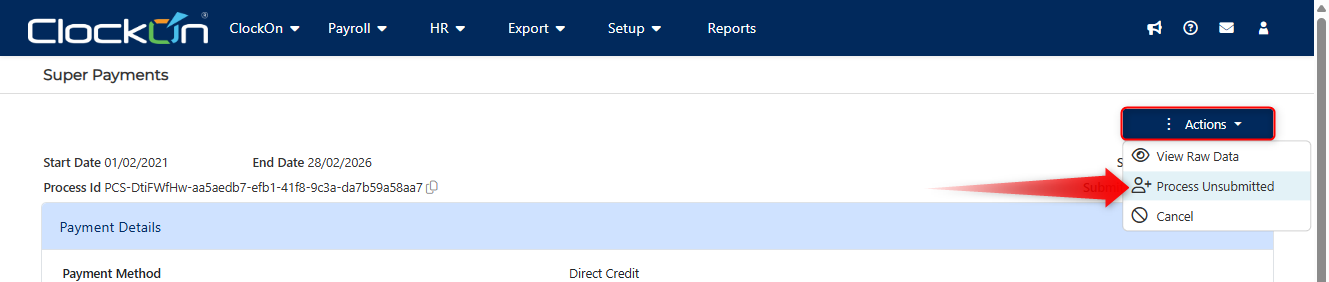
This will create a new submission record for the employees. If the error had been corrected then the employees will be marked to be included and ready for a re-submission.
If they are still in error they will remain excluded from the submission attempt. To see the error/s you can expand the employee instance and the system will provide the nature of the error as a link to the area in the system to make the correction.

Processing Status
The processing status advise differs between the different available payment types, these include Direct Debit and EFT/BPay.
Method of payment : Direct Debit
- Awaiting Payment - Occurs shortly after the submission has been confirmed.
- Awaiting Clearance - The money has been requested from the employers bank, the banks are communicating & stays as awaiting clearance for about 3 business day until the bank clears the money into our account.
- Sent To Fund - Beam has received the money & sent it along with the batch data to the respective super funds - everything is reconciled & complete on our end. this only occurs once the amounts have cleared.
- Missing Payment - Occurs when a direct debit dishonours. The status changes may also change back to "Awaiting Payment". Note that the employer will receive a notification which will include our EFT details for alternate payment.
- Cancelled - Occurs when payment is not received within the required timeframe.
Method of payment : EFT/BPay
- Awaiting Payment - Occurs shortly after the submission has been confirmed.
Payments usually appear in Beam's bank account the following business day, if paid before 3:30pm. If paid after 3:30pm it can take and additional day to clear. - Sent To Fund - If employer has paid correct amount, and used correct payment reference number, the amounts will be disbursed to the individual's super funds.
- Cancelled - If employer pays incorrect amount or uses wrong PRN banking reference number, the status will either stay as awaiting payment or change to missing payment & will update to cancelled if the full payment is not made for the batch within 3 days.
Our advice from beam is that unmatched or incomplete payments will be automatically refunded to the original accounts within 3 days of detection.Member Registration Request (MMR)
As part of the initial setup for new employees ClockOn will link with Beam to do a MRR request. This will contact the superfund to see if the employee already has a registration with the fund and if not automatically generate a new member number and return it to ClockOn.
The new member number will be automatically added to the employee's profile.
Please note that this will only work for the default super fund. If the employee has provided the details for another fund and the member details fail, ClockOn will notify within the submission details. Frequently Asked Questions
Can I use multiple default super funds?
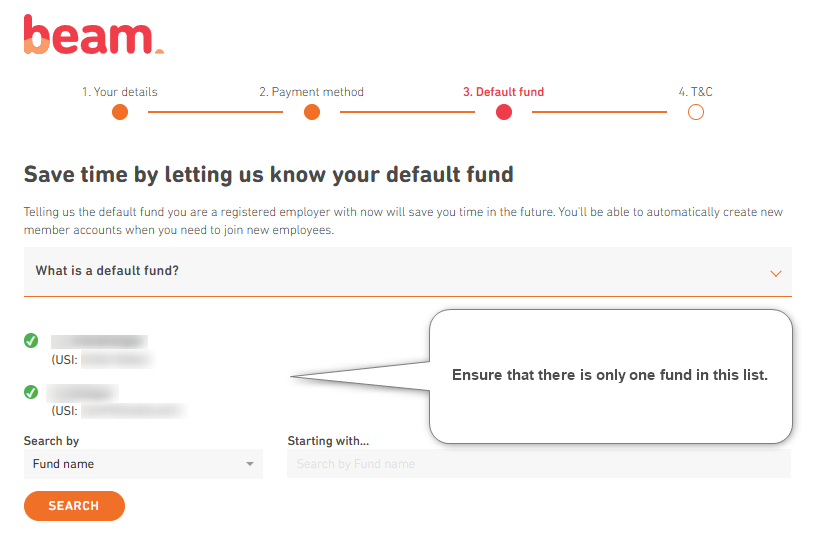
While Beam advises that their system can handle multiple default super funds, the ClockOn system does not yet have this functionality. Within ClockOn, the default superfund selection is only used to help provide a prefill the employee's super fund option when they are onboarding in the system and serves no additional purposes.
If you have a message preventing you from proceeding indicating this, please re-run the Beam setup and ensure that there is only one in the list

I have processed payrolls but they are not appearing when the load button is used?
The Load button will use the start and end dates selected on the screen to determine which payrolls to use for the submission, and this focuses on the Payment Date that was indicated on the payrolls processed. A way to check this value is to open a Payroll report options from the reports screen.
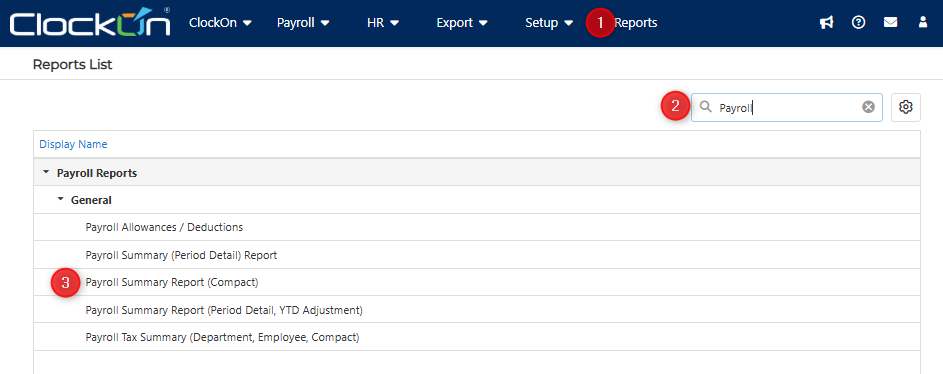
Use a larger range payroll period option such as "Financial Year to Date" and click "load", then view the results in the Payroll Ids list
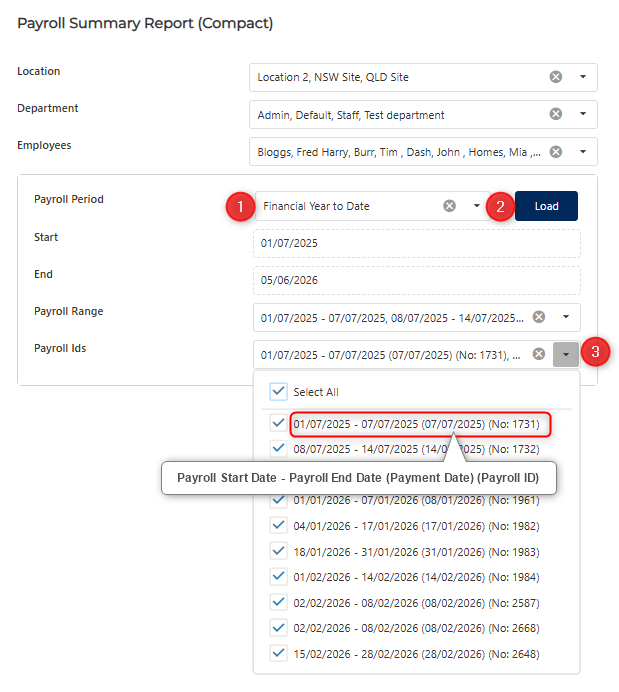
The Payroll Ids dropdown on this screen will show you the processed start date, end date, payment date, and payroll id.
In the above example I would need to ensure that the dates on the Beam super screen include 07/07/2025 to show the super payments for that period.