Please note: This feature is off by default and has to be enabled by the ClockOn administrator. This can be enabled within the Employee Access Groups page.
Employees have the option to view the site roster from within the self-service portal.
This can be accessed from the Schedule > Roster menu item.

Within this screen employees are able to view their shifts and those of other team members that are assigned shifts to the departments that they are included under. This gives them a view of who they will be working with on a particular day.
The walkthrough below details the features available within this section.
Shift Offer/Swap
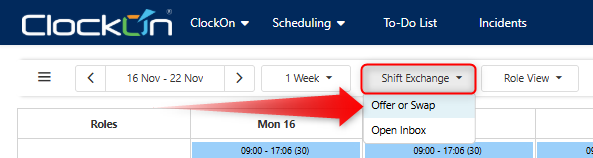
Options are available to allow employees to enter requests to offer or swap shifts from the portal. This can be done using the Shift Exchange button and using the Offer or Swap option.
You can then enter the details for the request.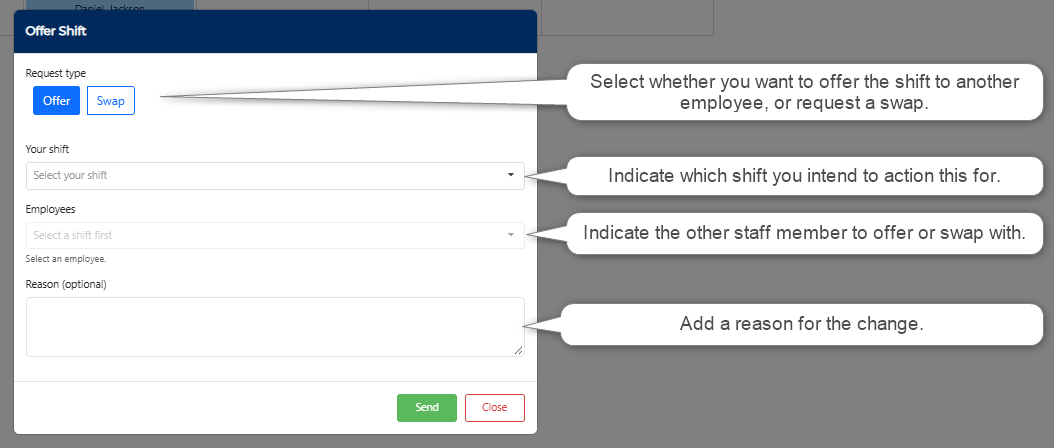
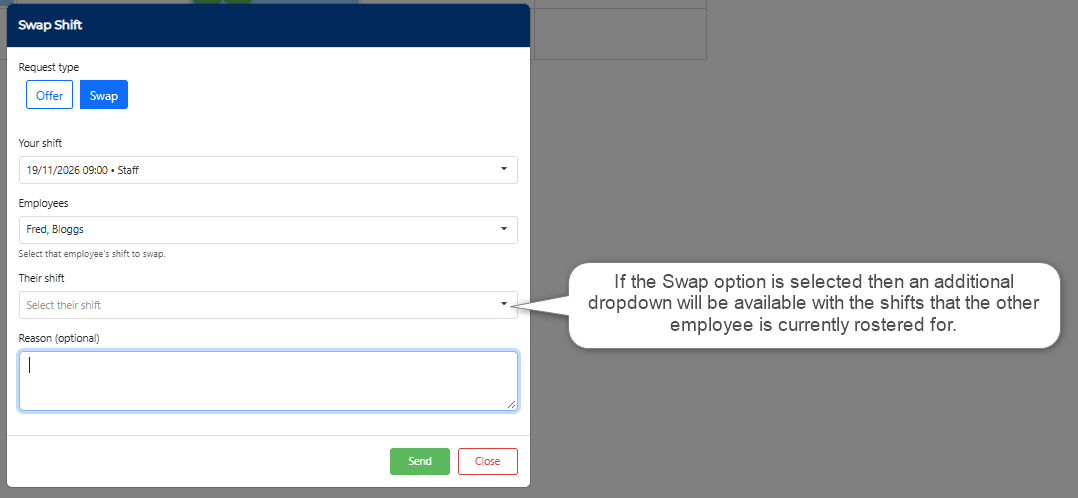
Swapping a shift is similar, with the exception that the other employee's shift can be selected in the request.
Incoming and outgoing requests can be viewed from the Shift Exchange > Open Inbox option. When selected a sidebar will open with the offer or swap details.
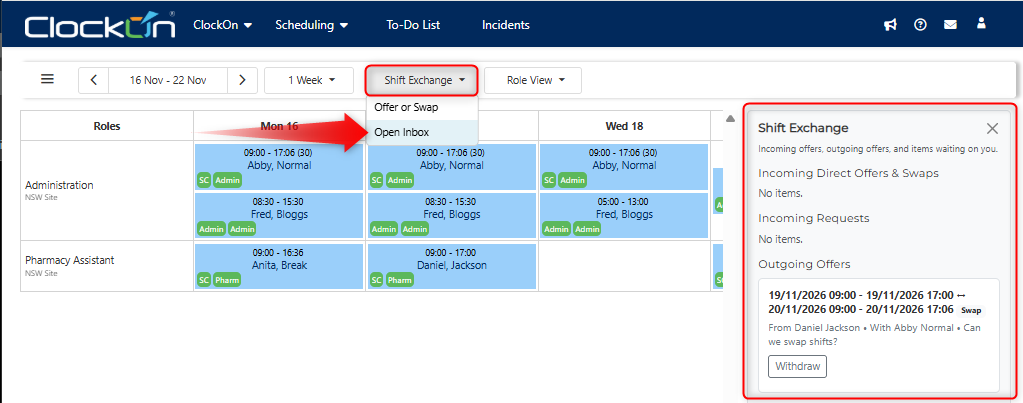
To complete the next step, the employee that this request has been sent to will need to open their Employee Portal Roster screen and either Accept or Decline the request.
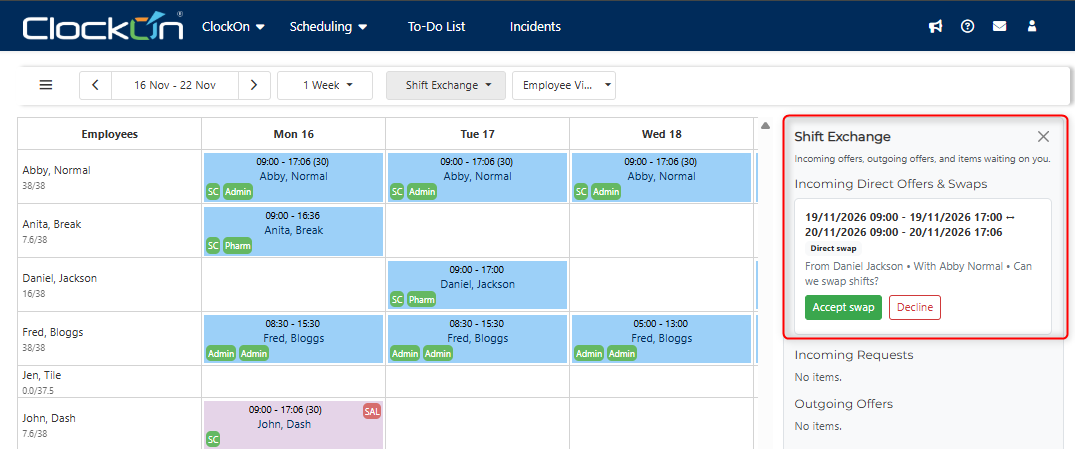
Depending on the company settings, requests can either be finalised at this point, or referred to the roster officer to an for additional acceptance before the change is applied to the roster.