This article details some initial troubleshooting steps if you or your users are experiencing login issues with the ClockOn GO mobile app.
- Check For Updates For ClockOn GO
- Getting Started With ClockOn GO
- Logging into the ClockOn GO App
- No Network Connectivity Or Unable To Connect To The Server
- Contacting Support
Check For Updates For ClockOn GO
The first step is to ensure that you are using the latest build of the app on your device.
- Android devices - How to update apps on Android
- iOS devices - How to manually update apps from the App Store
Getting Started With ClockOn GO
Before you can use the ClockOn GO app you will need to be invited by your organisation and accept the invitation. The invites are sent to the email inbox of the address that you provided to your employer. This is needed to create a ClockOn Online employee account.
If your ClockOn Administrator has issued this invite, you will see an email with the following in your inbox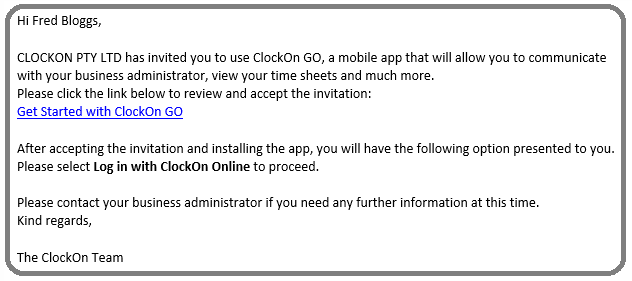
Use the Get Started with ClockOn GO link to continue the process.
If we already have your email address registered in the system, we will ask you to login. If you are unsure on the password, the Forgot Password option is available.We will need you to verify your details, check the terms and conditions, and use the Accept button to complete the process.
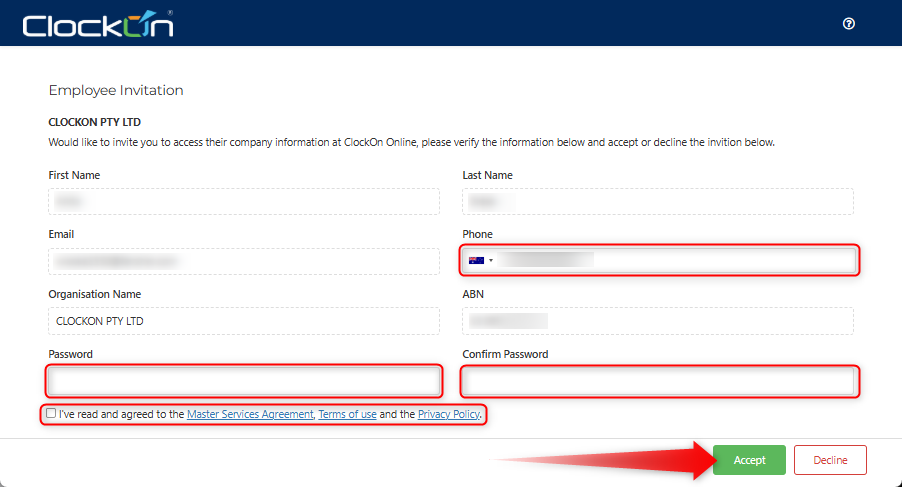
Once the account is created and the invite is accepted, then you can use your email and password to login to the ClockOn GO app.
Logging into the ClockOn GO App
As per the above you will first need to be invited and accept the invite before you will be able to access the ClockOn GO features. If this is done on the device and the ClockOn GO app is already installed, it should automatic redirect and login GO.
If this is not the case you can login to the app by opening the app, selecting the Log in with ClockOn Online option.
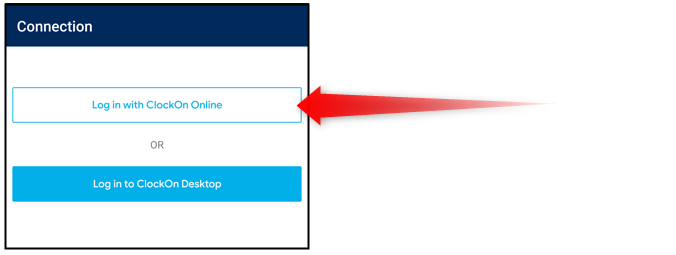
You will then be asked for your email and password and prompted to complete a two-factor authentication process.
No Network Connectivity Or Unable To Connect To The Server
If the ClockOn GO app indicates a Connection Failed message, this means that the app either cannot find the server or the device doesn't currently have an internet connection capable of reaching it.
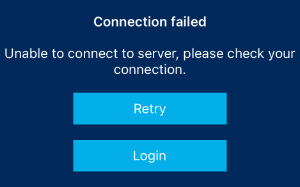
In the event of this we request that the user check to ensure the following
- Are you currently connected to a VPN?
If your VPN is based in overseas locations, this can cause connection latency issues to our server. We recommend disconnecting from it and trying again. - Are you currently connected to a work or public WIFI?
Some connections have restrictions on the sites you are allowed to connect to. If the connection works while you are on a standard cellular connection but not on WIFI you may need to contact your network administrator for assistance. - Do you have a strong internet signal to the device?
A quick way to test your internet signal connection is to search for Speed Test through a search engine, or download a speed test app on your device.
If you were having issues and the network connection is now restored, try the Retry button to connect try again. If this doesn't work then using the Login button will refresh the user details on the device.
If you are still not not able to open the app, the next step is to try clearing the app's cache. This will remove any existing login information and allow the login page to show.
If you are not sure on your password, we recommend using the Forgot Password option. Too many failed attempts will result it a temporary account lockout.Clearing and Resetting the Configuration in on Android Devices
- If you have the app icon on the phone's desktop, press and hold for a few seconds to open it's menu. This will show an App info option.
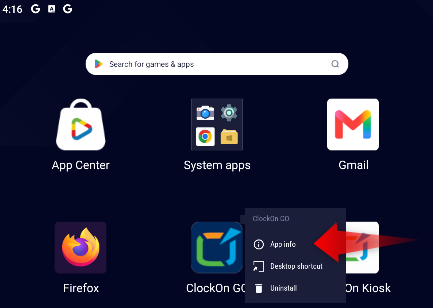
- Next select Storage
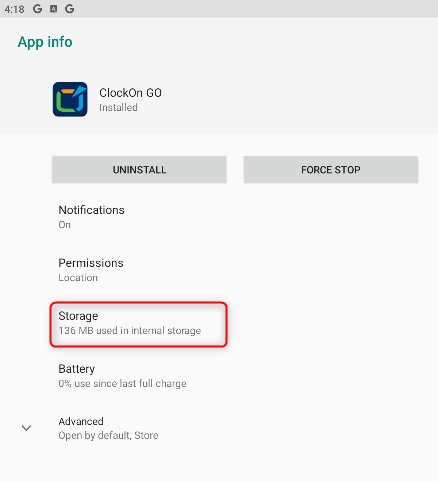
- Select Clear Storage.
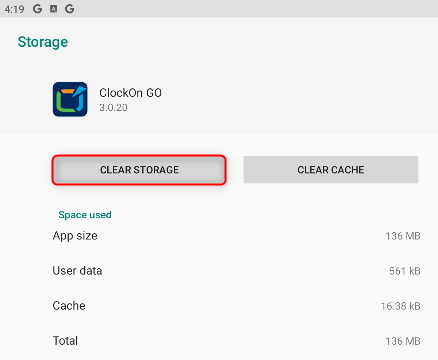
Once this is done, re-open the app and login using your ClockOn email address and password.
Clearing and Resetting the Configuration in on iOS Devices
We haven't been able to identify a way on iOS to clear the local information without removing the app itself. Below details the method required for iOS when the reconnect is not possible.
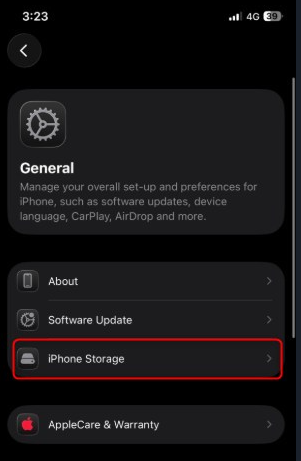
- Find and Navigate the "Settings" Icon. (Commonly Found on the home screen)
- Once within the settings select "General"
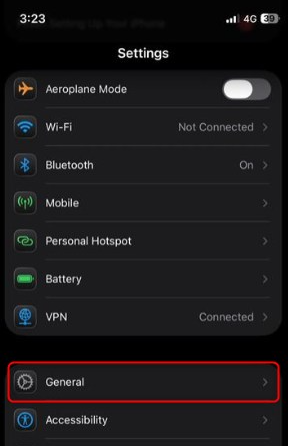
- Select "iPhone Storage"
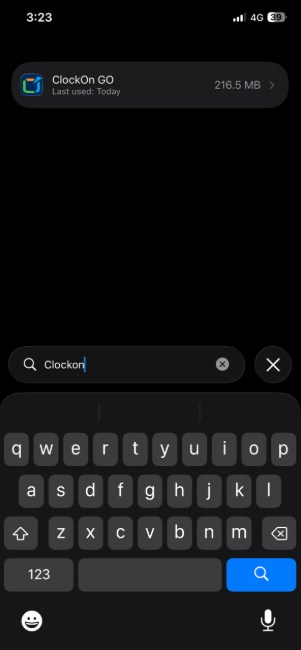
- Using the search menu at bottom type in ClockOn GO and select the App
- Select Delete App
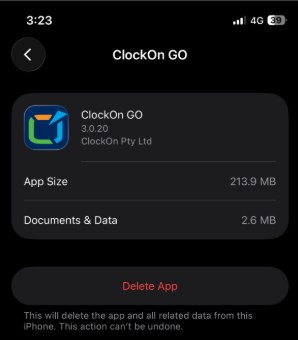
Once this is done, re-download the app from the App store, re-open the app, and login using your ClockOn email address and password.
Contacting Support
If the above does not resolve the issue please contact your ClockOn administrator and advise them of the following
- The device type Android/iOS and it's operating system version
- The device's model number
- The ClockOn GO app version, shown on the Help and Support menu option
- If you are able, provide a screenshot of the issue.
To log the request, please use the Submit a request at the bottom of the guide.