The time sheet lockdown feature allows a process where the time sheet officers to verify and signoff on time sheets before the payroll run commences.
This article contains information on the following
Enabling The Time Sheet Lockdown Feature
Before this feature will be available for use it first needs to be enabled, additionally and a security user role will need to be adjusted to allow the relevant employees access to this feature
Activating the feature
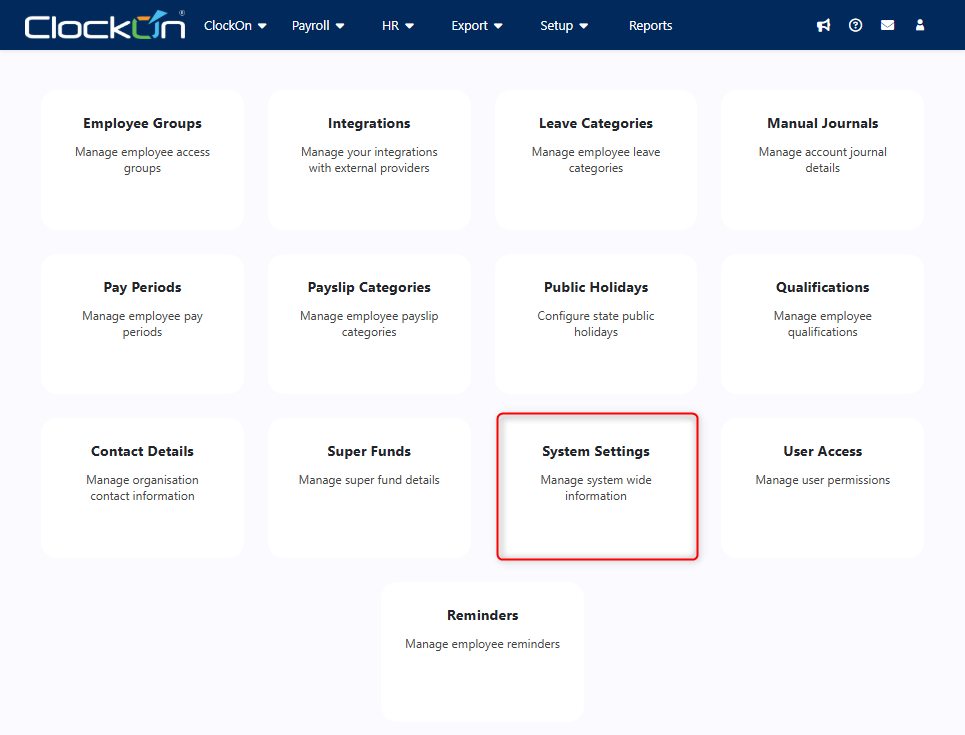
To enable the lockdown feature use the Setup > Additional Settings menu item
Then select System Settings
To complete the process change the Lockdown Processing dropdown to Enabled.
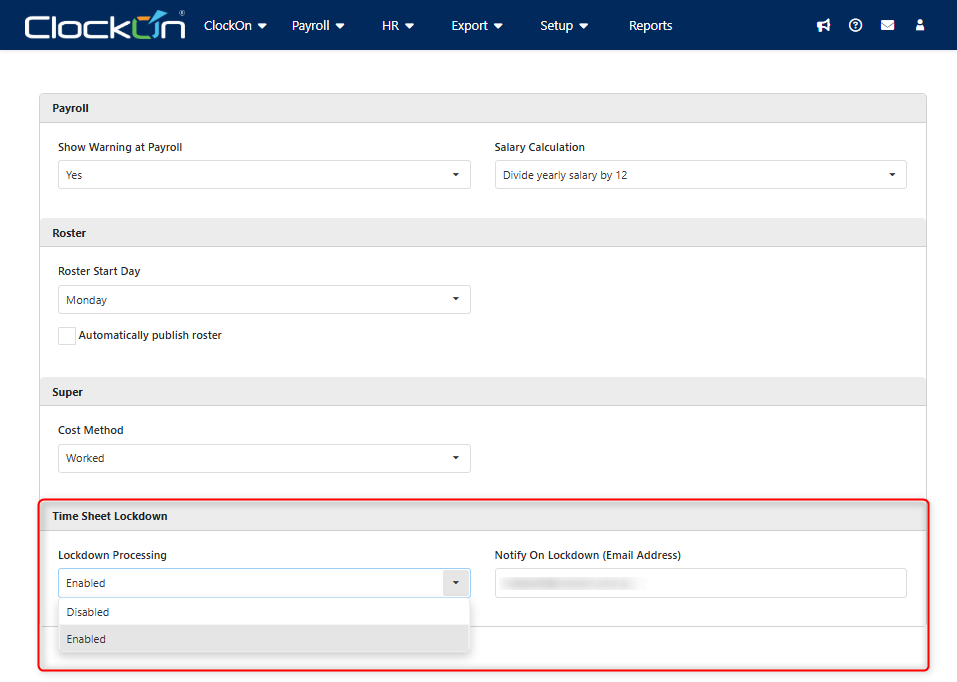
In addition to this you can set the Notify on Lockdown (Email Address) field, as this will send an email notification on the lockdown being completed which may be useful to advise the payroll officer that the period is ready for processing.Adjusting the security access
Now that the feature is enabled you will need to grant the relevant users access to this through the User Access > Roles system.
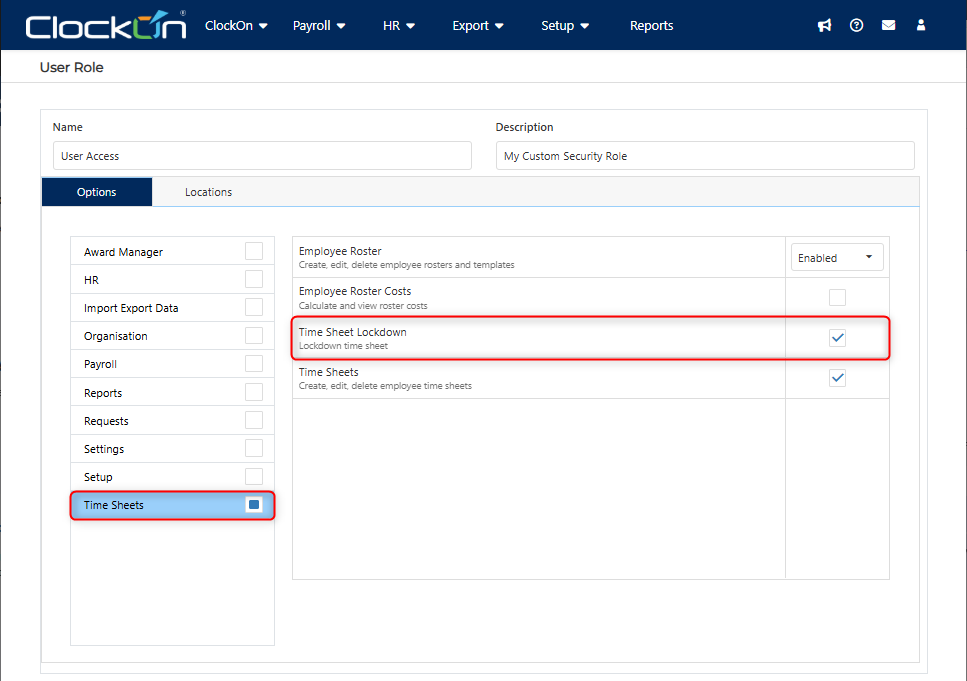
The following guide details how you can invite users to the system, and adjust/assign them the required access; User Access and Security.
Locking Down Time Sheets
The walkthrough below demonstrates how users can lock down the time sheets for a payroll.
Important Notes
With this process there are some important notes that apply
- The time sheet officers are able to re-process the lockdowns as many times as required up until the point in which the payroll process has been started (the draft payroll has been created).
- One the time sheets have been locked down, they will appear as processed in the time sheets and roster screens to avoid any additional edits.
- The payroll officer can still make changes to these time sheets as per usual within the payroll process
- Removing a draft payroll will also clear the locked flags on the time sheets making them available again in the system for employees and to re-start the lockdown process.