The ClockOn Administrator has options to selectively enable/disable features within ClockOn GO.
If there are features listed that are not available to you, please contact your administrator for advice.
This article explains the usage of the ClockOn GO app as usable by employees, and covers the following topics;
- Attendance
- Rosters
- Messages
- Timesheets
- Payslips
- Unavailable
- Requests
- Manage Requests
- Profile
- Settings
- Logout
- Help and Support
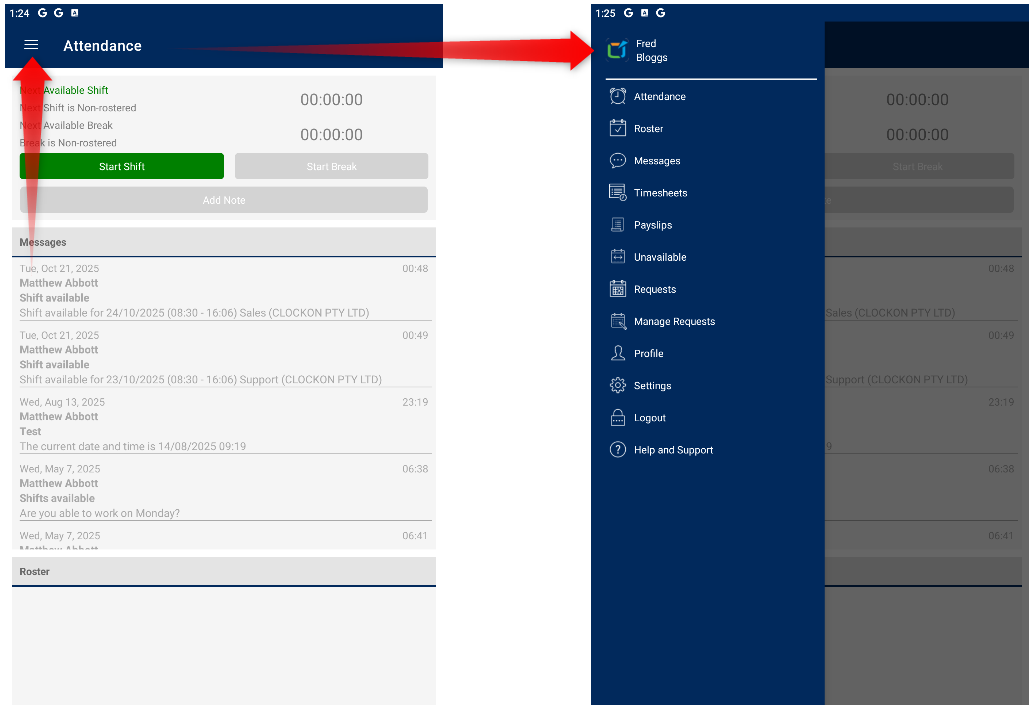
If you are having issues with your connection to the app please see our ClockOn GO - Troubleshooting article.These sections can be accessed through the menu icon at the top left of the app screen.
Attendance
This is the initial screen that the user will be presented with when opening the ClockOn GO app.
This allows the user to
- Clock times from the GO app
- View and action recent messages

To Clock attendance times, use the Shift Start, Start Break, End Break, or Shift End buttons appropriate to the scenario

You are able to expand the details of a message by selecting it.

Rosters
The Roster screen allows you to view which days the employee has been scheduled to work within the ClockOn system. Each work day is indicated by a grey circle.
Selecting the day in question will show the records for the shift, including the date, time, location, and department.

Messages
The messages screen shows all existing items that the administrator has sent to the employee. These may include roster publish advice, personalised messages, and company messages.
The messages will be received and require review by a ClockOn administrator. Once done, the employee will be notified of the result.Users can use the Filter button to view based on the dates that messages were received.

To send a message/request to the administrator, use the Plus icon located at the top right of the screen, then enter the message you wish to send.
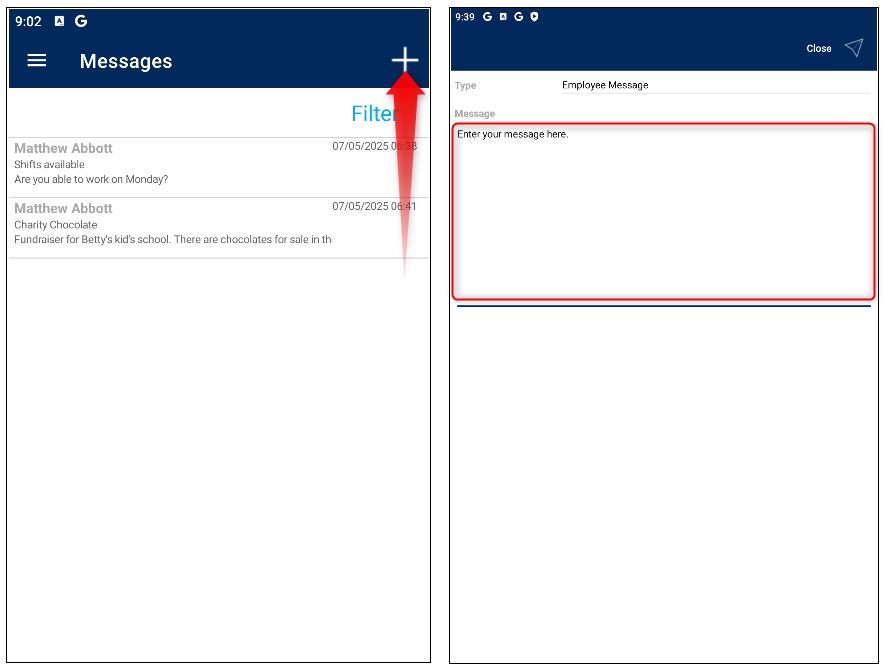
Once the type is selected, enter the details for the message, then use the send button to complete the process.

Timesheets
The time sheet view provides an alternative option to the roster view. It also allows employees to see the actual times clocked against the time sheets.

Payslips
The payslips view allows employee to be able to view a summary of their gross, hours, tax, and net per period that they have been processed in.

Additional details can be provided by selecting a period. This will show an on-screen version of the payslip.

Employees can prompt payslips to be emailed to their email address by using the mail button. 
Return to top
Unavailable
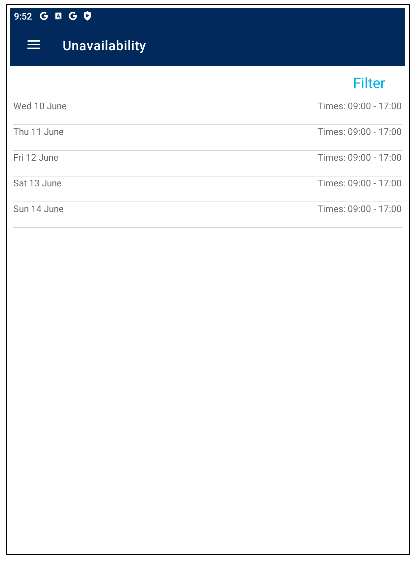
This screen allows employees to see the unavailability items that have been approved by management. Employees can send these requests using the Requests menu as detailed below.
Requests
The requests screen allows employees to create leave and unavailable requests that managers and system users can assess and action. This screen allows the user to view items that have been previously requested, make new requests, or cancel pending and re-request items if changes are needed.
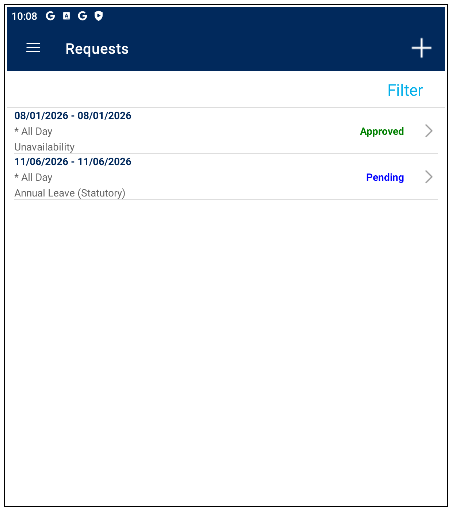
To create a new request use the + button
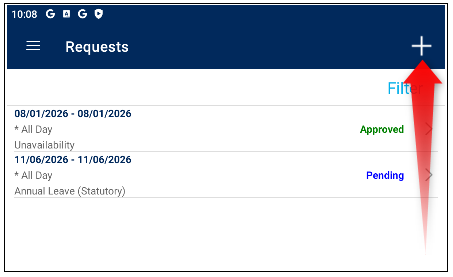
This will open the add request screen from here you can set the
- Type - Allows you to specify whether this is a leave request, or an unavailability request.
- Start and end dates,
- Whether the request is for the entire or part of the days in question, and
- The request reason
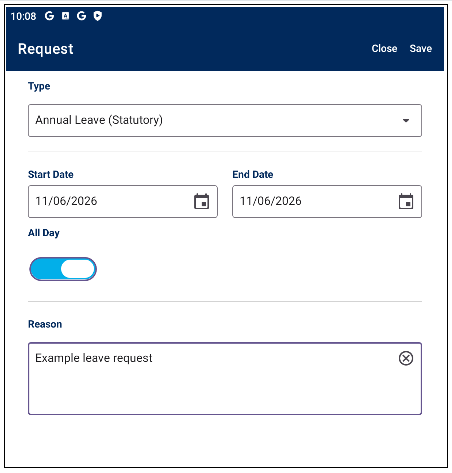
Note that the types of leave available in the Type dropdown is controlled from within the leave setup within ClockOn Online. If you believe something is missing from this list, contact your administrator.Once the settings have been applied use the Save button, and confirm to complete the request. This will them be added for your administrator to review and action.
You can also view the status of requests from this screen
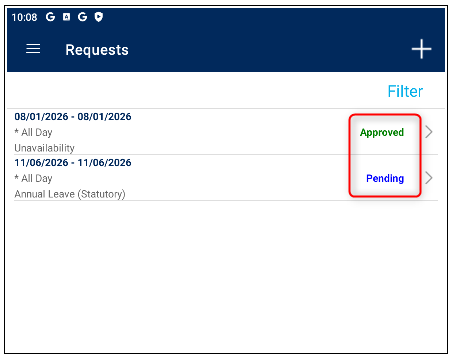
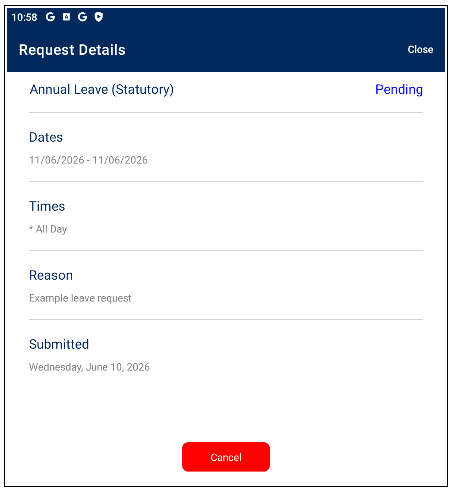
Selecting the request will also allow you to view the details. If the request is still in a pending state then you will also be able to cancel it if needed.
Manage Requests
This feature is only available for customers with a PRO subscription.
This is an admin feature that if enabled, allows employees that are set to be able to manage staff to be able to action requests directly from the ClockOn GO app. If a request is made by an employee and the user is set as a manager for the employee their request will appear in this list.
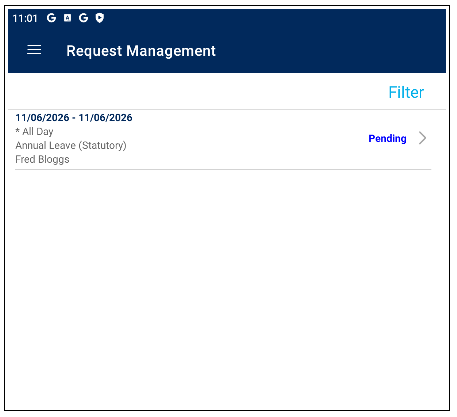
Selecting the request will give a screen with the request's details and allow the user to select whether to approve or decline the request.
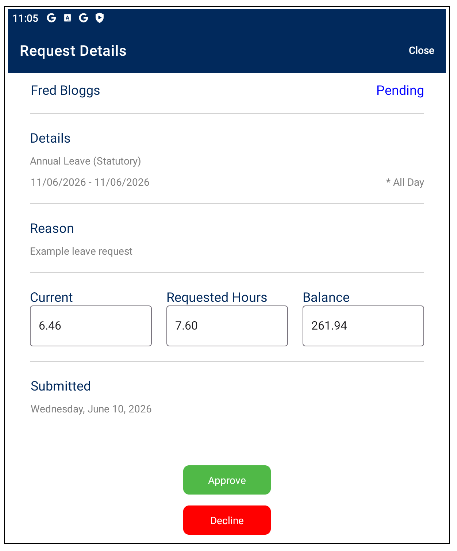
Actioning the request will then send a message response to advice the employee.
Profile
The profile section allows employees to view details including their name, phone numbers, and email address.
Also available is a screen for viewing the employee's leave entitlement balances.

ClockOn has options to enable/disable the view on each of the leave entitlement option. If you feel that one is missing please contact your administrator.
Settings
This screen allows for access to the login view if a switch is required between the desktop and online versions, or to try the app demo.
We advise that this only be used for troubleshooting purposes.Logout
This section allows users to disconnect from the app on their device. This will forget the login details and clear the app cache from the device. Data related to the employee's use of the system is retained and can be accessed again by logging onto the device.
Help and Support
This section details a link to our help resource, the app version, and the unique ID for the ClockOn Online instance

The unique ID is useful when contacting support for assistace.